
How to Create Submission Drawings in AutoCAD – Step-by-Step Tutorial for Beginners
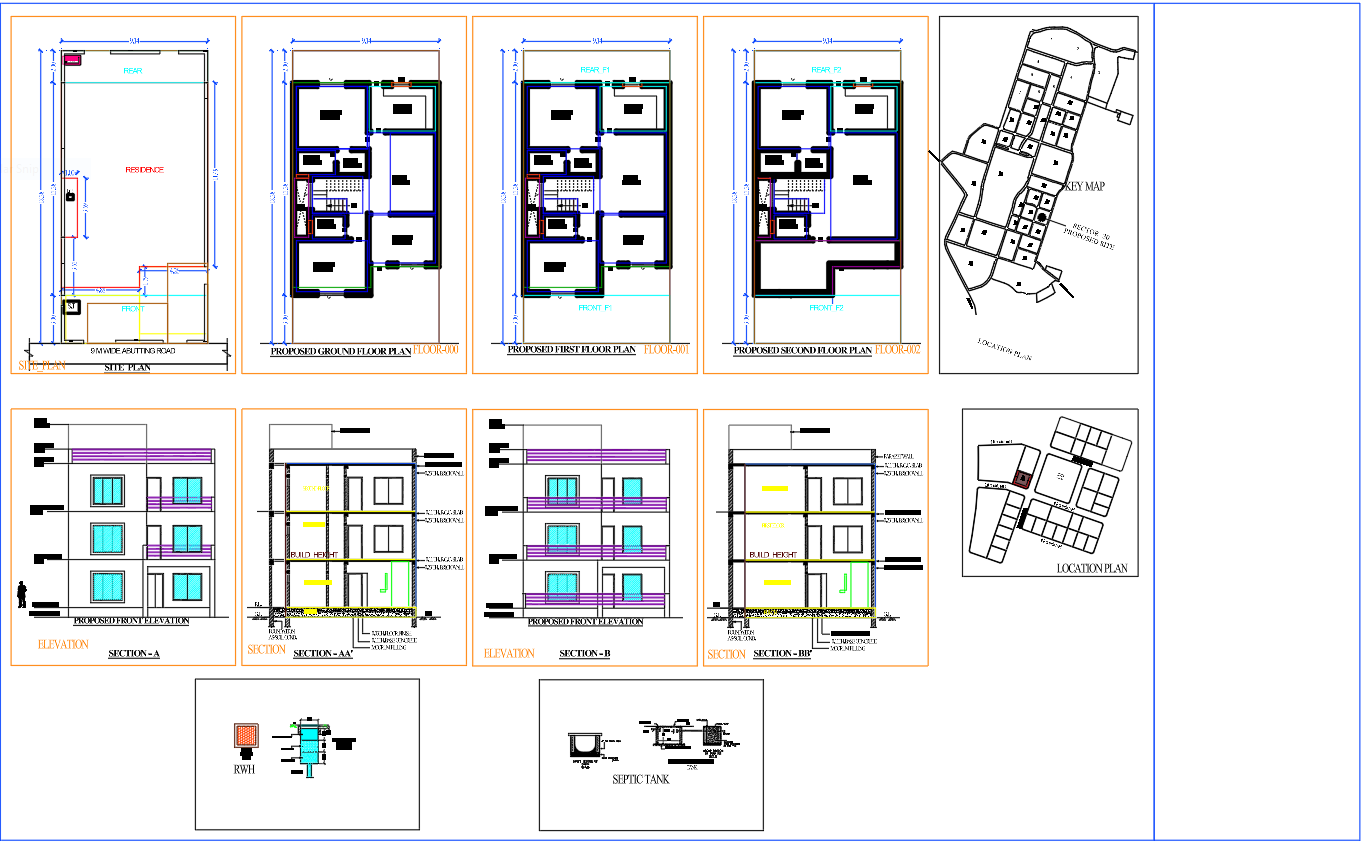
Creating an architectural drawing in AutoCAD is not only about drawing walls, doors, windows, and rooms. A proper submission drawing has to communicate the proposed design clearly to another person who may not have been involved in creating it.
For beginners, this is where confusion often starts. A floor plan may look complete on the screen, but it may still be difficult to read when printed or submitted. Dimensions may be unclear, text may be too small, important information may be missing, or the drawing may not have a consistent presentation.
A well-prepared submission drawing solves these problems by combining the architectural layout with clear dimensions, annotations, levels, symbols, drawing information, and an organized sheet.
This guide explains a practical workflow for creating an architectural submission drawing in AutoCAD, from setting up the file to preparing the final sheet.
What Is a Submission Drawing?
A submission drawing is an architectural drawing prepared for presenting a proposed design to a client, authority, consultant, or other project stakeholder.
Depending on the project, a submission set may include drawings such as:
- Site plan
- Ground floor plan
- First floor plan
- Terrace plan
- Elevations
- Sections
- Staircase details
- Area statement
- Door and window information
- Parking layout
- Location or key plan
- General notes
- Drawing title and project information
The exact requirements can vary according to the project and the authority where the drawing is being submitted.
The important point is that a submission drawing should be easy to understand, properly annotated, and organized for review.
Submission Drawing vs Working Drawing
One of the most important concepts for beginners is understanding that a submission drawing and a working drawing do not serve exactly the same purpose.
A submission drawing generally focuses on communicating the proposed architectural design and required information in a clear presentation format.
A working drawing goes further into construction-related information. It may contain detailed dimensions, construction details, material specifications, structural coordination, joinery information, and other information required for execution.
For example, a submission floor plan may show:
- Room names
- Overall dimensions
- Internal dimensions
- Doors and windows
- Staircase
- Floor levels
- North direction
- Basic architectural annotations
A working drawing may additionally contain detailed construction information such as:
- Wall construction
- Flooring patterns
- Detailed staircase dimensions
- Construction sections
- Door/window schedules
- Waterproofing details
- Electrical coordination
- Detailed material information
Therefore, beginners should first decide what information the drawing is intended to communicate before adding every possible detail.
Step 1: Understand the Drawing Before Opening AutoCAD
Before starting the AutoCAD file, collect the information that will be required for the drawing.
For a typical residential submission plan, check:
- Plot dimensions
- Plot orientation
- Road location
- North direction
- Setback requirements
- Proposed building footprint
- Number of floors
- Room arrangement
- Staircase position
- Parking requirements
- Open spaces
- Entry location
- Required dimensions
- Applicable local requirements
This preparation stage is often skipped by beginners.
However, spending a few minutes understanding the design can prevent repeated modifications later.
For example, if the north direction or road location is identified incorrectly at the beginning, the entire presentation may have to be adjusted later.
Step 2: Set Up the AutoCAD Drawing
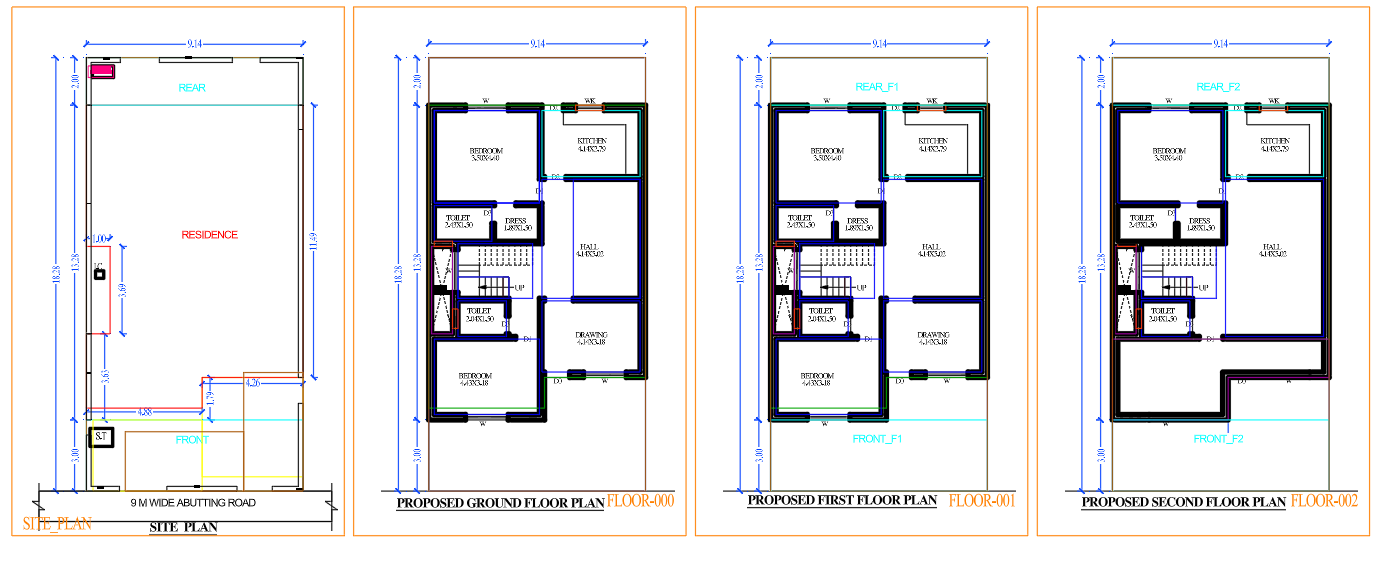
Start with a clean AutoCAD file and establish the basic drawing environment.
The first setup should include:
- Units
- Drawing limits or working area
- Layers
- Text style
- Dimension style
- Annotation settings
- Line types
- Lineweights
- Layout sheets
For architectural work, it is generally easier to create the model at actual size and control the printed scale through the layout and viewport.
For example, if a wall is 230 mm thick, draw it according to the intended real dimension rather than shrinking the wall simply because the sheet is small.
The sheet size and viewport scale can be handled later.
Step 3: Create a Logical Layer Structure
Layers are one of the most important parts of an organized AutoCAD drawing.
Instead of putting everything on one layers, separate different types of information.
- Create separate layers for walls, doors, windows, dimensions, text, furniture, and hatches.
- Use clear layer names such as WALL, DOOR, WINDOW, DIM, TEXT, FURNITURE, HATCH.
- Assign different lineweights where required.
- Keep dimensions and annotations separate from the main drawing.
- Turn layers on/off when checking or editing the drawing.
The exact layer names can be changed according to your office or project standards.
The purpose is not to create dozens of layers
For a more detailed understanding of AutoCAD Layers organization, naming, lineweights, and layer management, see our guide on AutoCAD Layer Standards for Professional Submission Drawings unnecessarily. The goal is to make the drawing easy to control and edit.
Step 4: Draw the Site or Plot Information
If the submission sheet includes a site plan, begin by representing the plot accurately.
Show the relevant information such as:
- Plot boundary
- Adjacent road
- North direction
- Access or entry
- Existing surroundings where required
- Setbacks
- Proposed building footprint
- Open spaces
- Parking
- Important site dimensions
Do not make the site plan unnecessarily complicated.
The site drawing should allow the reader to understand the relationship between the plot, road, building, and open areas quickly.
If the project requires surrounding properties or roads to be shown, use a lighter visual hierarchy so that the proposed building remains the primary focus.
Step 5: Develop the Floor Plan
Once the basic site information is established, develop the floor plan.
For a residential floor plan, the drawing may include:
- External walls
- Internal partitions
- Rooms
- Kitchen
- Toilets
- Staircase
- Doors
- Windows
- Balcony
- Utility areas
- Parking
- Circulation spaces
At this stage, concentrate on the architectural arrangement rather than trying to perfect the sheet presentation immediately.
Check whether:
- Rooms are properly connected.
- Doors provide practical access.
- Windows are positioned logically.
- Staircase access works.
- Toilets have suitable access.
- Circulation spaces are understandable.
- Furniture placement supports the proposed room function.
A plan should communicate how people are expected to use the building, not merely show a collection of rectangles.
If you want to understand the basic elements and purpose of an architectural floor plan in more detail, read our guide on Architectural Floor Plan Drawings.
Step 6: Add Doors and Windows
After the wall layout is stable, add doors and windows.
Use consistent symbols throughout the drawing.
For example, a door should clearly communicate:
- Opening direction
- Door position
- Connection between spaces
Windows should be represented consistently so they can be identified without confusion.
Avoid using decorative blocks that make the floor plan visually heavy.
The purpose of architectural symbols in a submission drawing is communication, not decoration.
Step 7: Add Room Names and Basic Annotations
Room labels help the reader understand the floor plan without interpreting every line.
Typical labels may include:
- Living Room
- Bedroom
- Kitchen
- Dining
- Toilet
- Store
- Utility
- Balcony
- Passage
- Staircase
- Parking
Room names should be placed inside the appropriate spaces and should have a consistent text style.
Where useful, additional information can be included below the room name, such as approximate room dimensions or level information.
For example:
BEDROOM
3.60 × 4.20 m
However, avoid filling every room with excessive text. The information should remain readable at the final printed scale.
Step 8: Add Dimensions in an Organized Way
Dimensions are essential in an architectural submission drawing, but adding dimensions randomly can make a plan difficult to read.
A better approach is to organize dimensions into groups.
Overall Dimensions
These communicate the total size of the building or relevant portion of the plan.
External Dimensions
These can indicate:
- Building projections
- Wall locations
- Setbacks
- Open spaces
- Major external features
Internal Dimensions
These help communicate room sizes and important internal relationships.
Opening Dimensions
Where required, dimensions may identify the location or size of doors, windows, or other openings.
The dimensioning system should have a clear hierarchy.
Avoid placing several dimension strings on top of each other. Maintain enough space between dimension lines so that the information remains readable.
Step 9: Show Staircase Information Clearly
Staircases deserve special attention because they can be difficult to understand from a simple plan.
A submission plan may show:
- Stair direction
- Step arrangement
- Riser/tread indication where appropriate
- Up/down direction
- Landing
- Stair width
- Level information
Use an arrow or other consistent architectural notation to communicate the direction of movement.
The staircase should be understandable without requiring the reader to guess where it starts or ends.
Step 10: Add Levels Where Required
Level information is particularly useful when the drawing includes different floors or changes in height.
Depending on the project, you may need to indicate:
- Ground floor level
- First floor level
- Plinth level
- Terrace level
- Staircase levels
- Section levels
Use a consistent level symbol and notation throughout the drawing.
Do not add level information simply because it looks professional. Add it where it helps communicate the design.
Step 11: Add North Direction
A north arrow is important for architectural drawings because orientation affects the understanding of:
- Building direction
- Road position
- Site planning
- Open spaces
- Natural light
- Ventilation
- Planning considerations
Place the north symbol where it is easy to identify without interfering with the main floor plan.
The north arrow should remain consistent across related drawings unless the drawing orientation changes intentionally.
Step 12: Use Hatches Carefully
Hatching can improve drawing readability by helping distinguish different materials or areas.
However, beginners often make the mistake of using too many hatch patterns.
Use hatches selectively for things such as:
- Cut walls
- Site surfaces
- Paved areas
- Landscape areas
- Specific materials where required
The hatch should support the drawing rather than overpower it.
Always check how the hatch appears at the final plotting scale.
A hatch that looks fine while zoomed in may become too dark or dense after printing.
Step 13: Establish Visual Hierarchy
A professional submission drawing should have a clear visual hierarchy.
Not every line needs to have the same visual importance.
For example:
Primary information
- Building walls
- Main floor-plan geometry
Secondary information
- Doors
- Windows
- Furniture
- Fixtures
Supporting information
- Dimensions
- Notes
- Symbols
- Reference information
This can be controlled through:
- Lineweights
- Layer settings
- Text sizes
- Dimension appearance
- Hatch density
The reader should be able to identify the main building layout first and supporting information second.
Step 14: Prepare the Drawing Sheet
Once the model drawing is complete, move to the layout or paper space for sheet preparation.
A submission sheet may contain:
- Project title
- Drawing title
- Drawing number
- Client information
- Architect/designer information
- Scale
- Date
- Revision information
- North arrow
- Notes
- Sheet number
- Drawing border
- Title block
The exact title block information depends on the project requirements.
Keep the sheet balanced.
Do not place every available piece of information into the title block. Include only what is useful and required.
Step 15: Select an Appropriate Scale
The scale should allow the drawing to be read comfortably on the selected sheet.
Common architectural scales may include:
- 1:50
- 1:100
- 1:200
The appropriate scale depends on the drawing size, sheet size, and amount of information.
For example, a detailed small residential plan may require a larger scale than a complete site plan.
Before finalizing the sheet, check the drawing at print size, not only while zoomed into model space.
This is one of the easiest ways to identify problems AutoCAD drawing layout with text and dimensions.
Step 16: Create Viewports in Layout
In paper space, create a viewport for the required drawing.
Set the viewport to the selected scale and lock it after positioning.
Arrange different drawings logically.
For example, a residential submission sheet could be organized as:
Top area
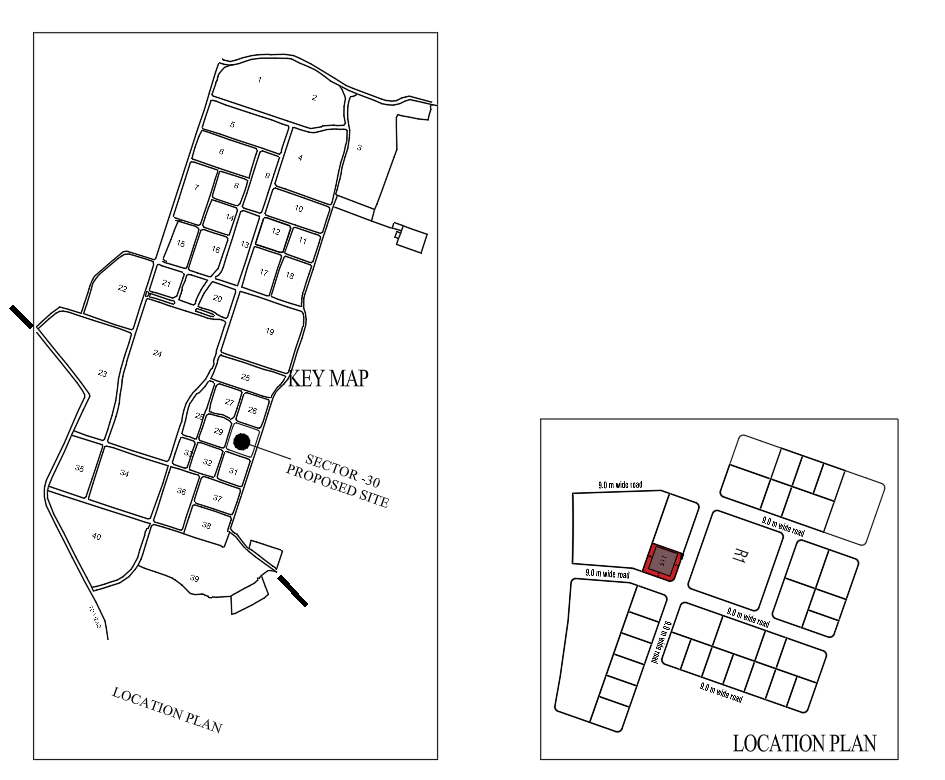
- Site plan
- Key plan
Main area
- Ground floor plan
- First floor plan
Side or lower area
- Elevations
- Section
Bottom area
- Notes
- Area information
- Title block
The exact arrangement depends on the sheet size and project requirements.
The main goal is to create a logical reading order.
Step 17: Add Elevations and Sections
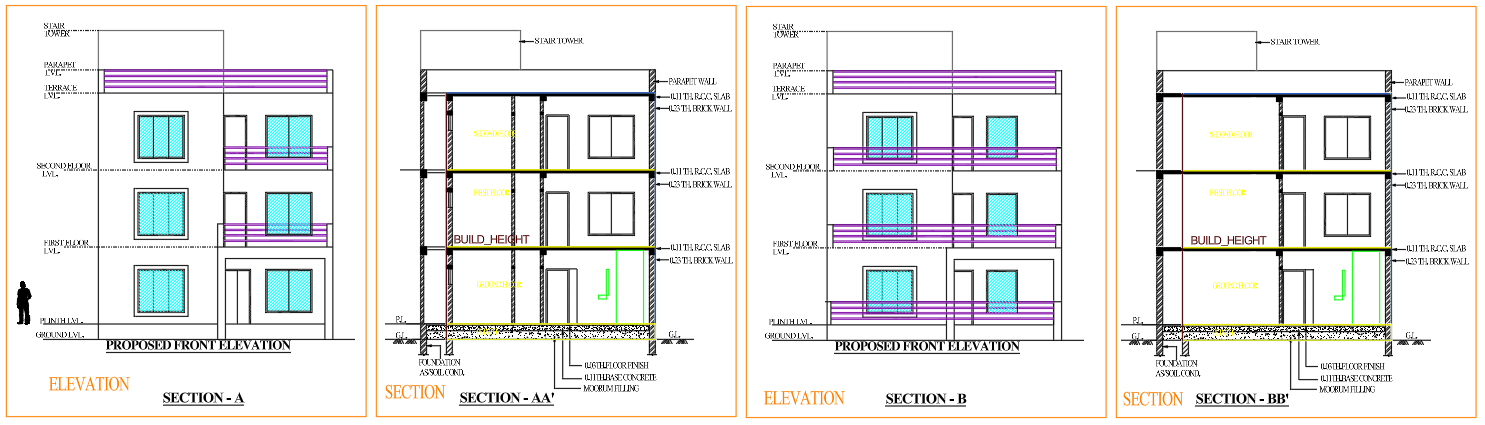
If the submission set includes elevations and sections, maintain the same graphic language used in the floor plan.
An elevation can communicate:
- Building façade
- Floor levels
- Openings
- Roof profile
- External appearance
A section can communicate:
- Floor-to-floor relationship
- Staircase
- Slab levels
- Roof
- Vertical spaces
- Building height
Make sure the section marker in the floor plan corresponds correctly to the section drawing.
Similarly, elevation labels should be clear and consistent.
Step 18: Add Notes Without Overloading the Sheet
General notes can be useful, but too many notes can reduce the clarity of a drawing.
Include only relevant information.
For example, notes may cover:
- Drawing purpose
- General architectural information
- Reference information
- Revision information
- Important project notes
Avoid copying large blocks of generic notes into every drawing.
A good submission sheet should feel project-specific, rather than like a template filled with unrelated information.
Step 19: Check the Drawing Before Plotting
Before exporting or printing the submission drawing, perform a structured quality check.
Geometry Check
- Site plan
- Key plan
Main area
- Ground floor plan
- First floor plan
Side or lower area
- Elevations
- Section
Bottom area
- Notes
- Area information
- Title block
The exact arrangement depends on the sheet size and project requirements.
The main goal is to create a logical reading order.
Step 20: Export the Final Drawing
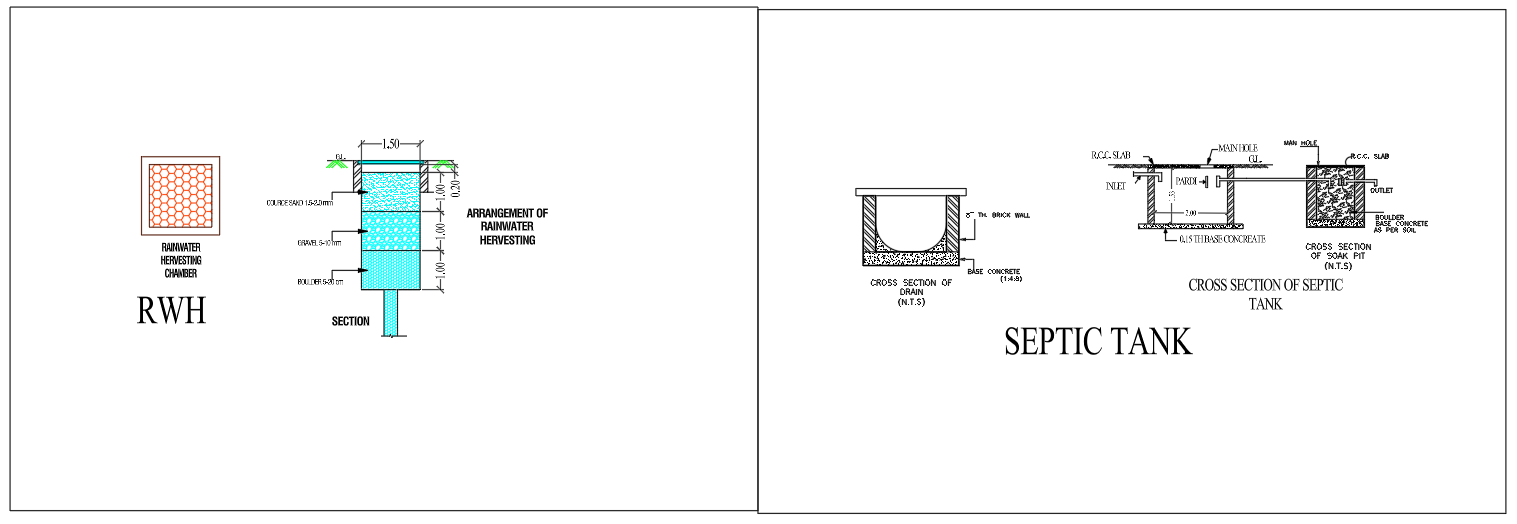
Once the drawing has passed the checking process, prepare the final output according to the project requirement.
A PDF is commonly used when a drawing needs to be shared or submitted digitally.
Before sending the final file, open the exported PDF and inspect it.
Do not assume that a drawing that looks correct in AutoCAD will automatically look correct in PDF.
Check at least:
- Overall sheet appearance
- Text clarity
- Dimension visibility
- Lineweights
- Page size
- Drawing scale information
- Title block
- Missing or clipped elements
This final inspection can catch problems before the drawing reaches the client or submission authority.
A Simple Submission Drawing Workflow for Beginners
If you are new to architectural drafting, the following sequence is easier to follow:
Understand the project
↓
Set units and drawing environment
↓
Create layers
↓
Draw plot/site information
↓
Develop floor plan
↓
Add doors and windows
↓
Add staircase and fixtures
↓
Add room names
↓
Add dimensions
↓
Add levels and north direction
↓
Prepare elevations and sections
↓
Create layout sheet
↓
Set viewport and scale
↓
Add title block and notes
↓
Check drawing
↓
Plot/export PDF
This sequence reduces unnecessary rework and helps beginners develop a repeatable drafting workflow.
Common Submission Drawing Mistakes Beginners Should Avoid
1. Drawing Everything on One Layer
This makes editing difficult and can create problems when controlling lineweights or visibility.
2. Using Too Many Different Text Styles
A drawing can quickly look inconsistent if every annotation uses a different font or size.
3. Adding Dimensions Randomly
Dimensions should follow a clear hierarchy rather than filling every available space.
4. Ignoring the Final Print Size
A drawing can look perfect at 100% zoom but become unreadable when printed.
5. Making Every Line Equally Heavy
Equal lineweights reduce visual hierarchy and make the drawing appear flat.
6. Overusing Hatches
Heavy hatching can hide important architectural information.
7. Forgetting Orientation
A missing or unclear north arrow can make site and planning information harder to understand.
8. Inconsistent Symbols
Doors, windows, stairs, levels, and other symbols should follow a consistent graphic language.
9. Skipping the PDF Check
Always inspect the final exported file before submission.
10. Treating a Submission Drawing Like a Construction Drawing
Add information according to the purpose of the drawing. More information does not automatically mean a better drawing.
Example: How to Organize a Residential Submission Sheet
For a small residential project, one possible sheet arrangement could be:
Drawing 01 – Site Plan
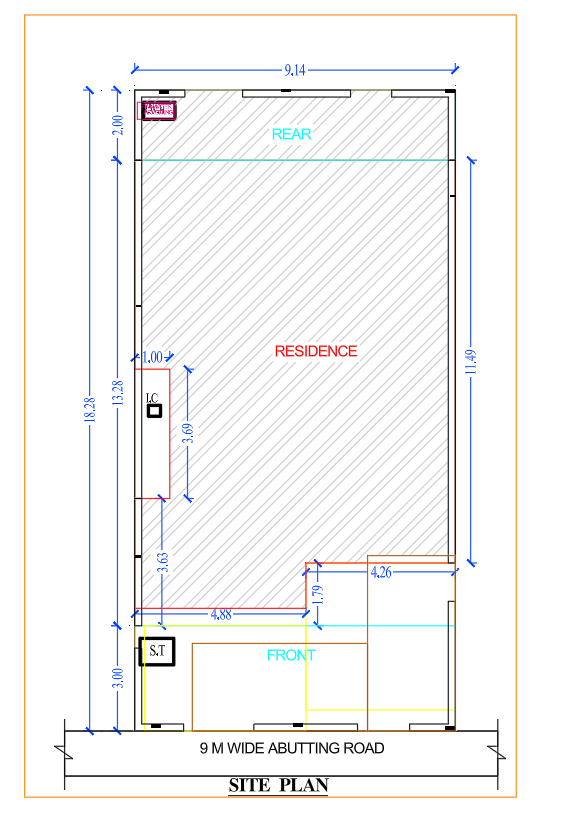
- Plot boundary
- Road
- North arrow
- Setbacks
- Proposed building
- Site dimensions
Drawing 02 – Ground Floor Plan
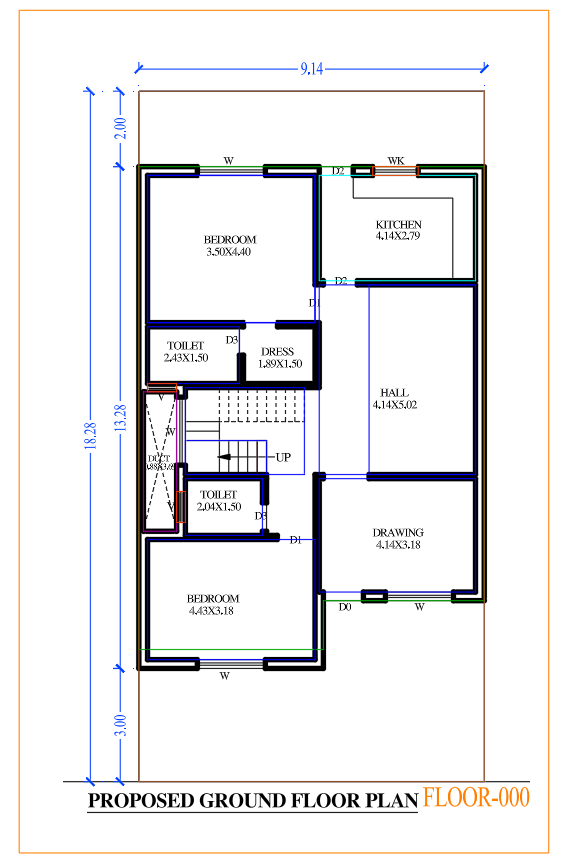
- Room layout
- Doors and windows
- Staircase
- Dimensions
- Room names
- Levels
Drawing 03 – First Floor Plan
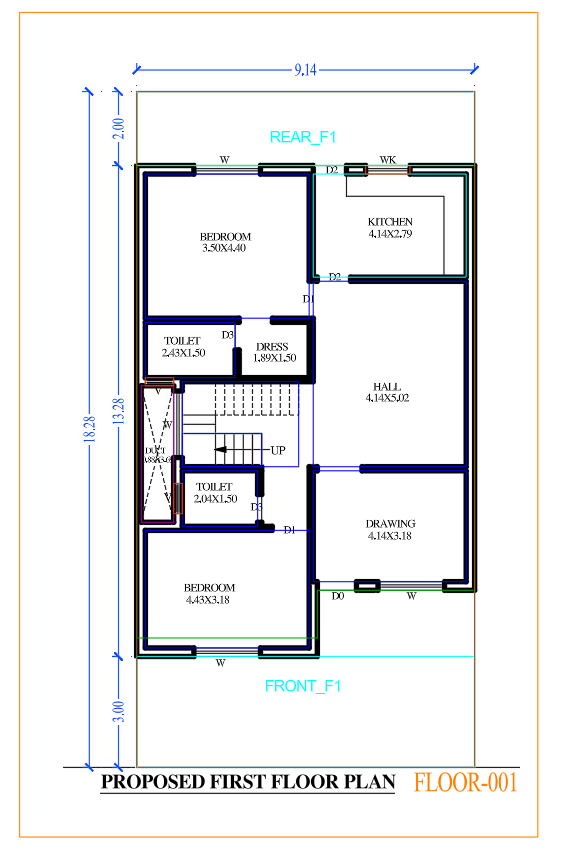
- Floor layout
- Open areas
- Balcony
- Staircase
- Dimensions
- Room names
Drawing 04 – Elevations
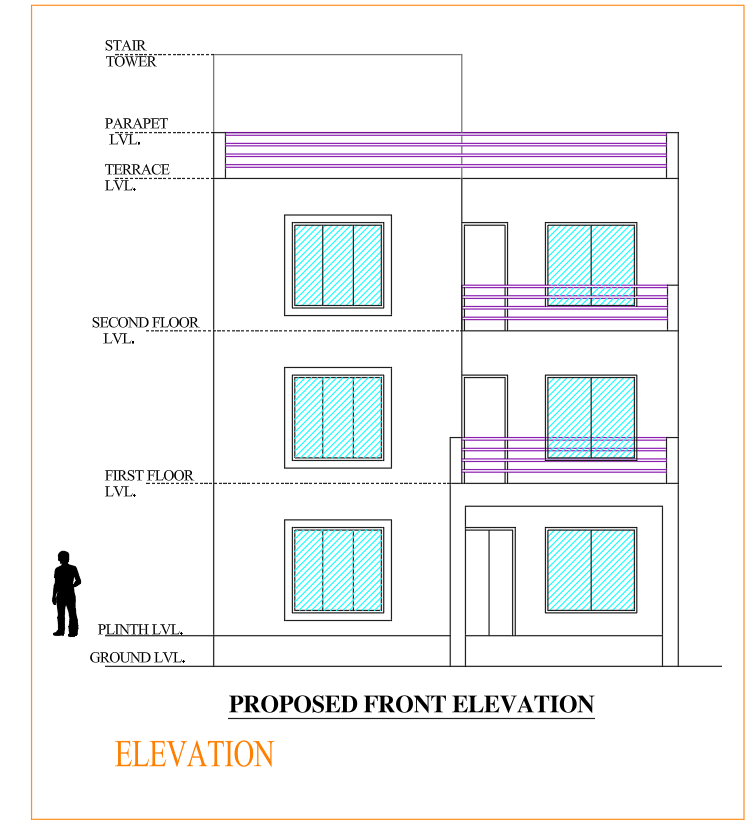
- Front elevation
- Side elevation where required
- Levels
- Basic architectural elements
Drawing 05 – Section
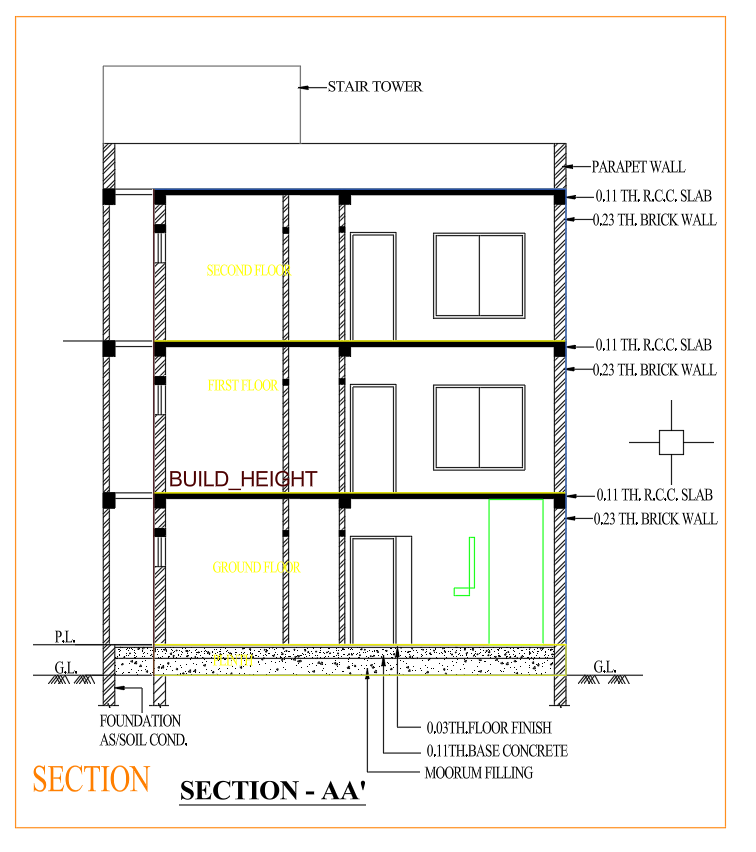
- Floor levels
- Staircase
- Slab
- Roof
- Vertical dimensions
This is only an example of organization. Actual submission requirements should always be checked according to the project and applicable local authority requirements.
How to Make Your AutoCAD Submission Drawings Look Professional
Professional-looking drawings are usually not created by adding more graphics. They are created through consistency and clarity.
Focus on these points:
Keep the Layer System Consistent
Use the same layer logic throughout the project.
Maintain Text Consistency
Room labels, notes, dimensions, and titles should have a planned hierarchy.
Use Lineweights Intentionally
Make important architectural elements visually stronger than supporting information.
Maintain Alignment
Align related drawings, titles, and information wherever practical.
Leave Enough White Space
Empty space is useful. It prevents drawings from looking crowded.
Check the Sheet as a Whole
Do not review only individual plans. Look at the entire sheet as a reader would see it.
Submission Drawing Checklist
Before final submission, use this quick checklist:
Correct project name
Correct drawing title
Correct drawing number
Correct orientation
Plot/site information checked
Floor plan checked
Doors and windows checked
Staircase checked
Room names checked
Dimensions checked
Levels checked
Elevations/sections checked
Scale checked
Layers organized
Lineweights checked
Hatches checked
Title block completed
PDF preview checked
No unwanted objects visible
No important information clipped
Final Thoughts
Creating a submission drawing in AutoCAD is a combination of drafting, documentation, organization, and presentation.
For beginners, the most useful approach is to avoid trying to complete everything at once. Build the drawing in stages: first establish the design, then organize the information, and finally prepare the sheet for presentation.
A good submission drawing should allow someone to understand the proposed building without needing the designer to explain every line. Clear dimensions, readable annotations, consistent symbols, appropriate lineweights, and a well-organized sheet all contribute to that goal.
The best way to improve is to create a small residential project and follow the same workflow repeatedly. With practice, layer management, dimensioning, layout preparation, plotting, and drawing coordination become much faster and more reliable.
Important: Submission requirements, drawing formats, scales, and documentation can differ between projects and local authorities. Always verify the current requirements applicable to the specific project before submitting an architectural drawing.